OrderSpec help
Everything you need to set up OrderSpec and understand what it shows you. Most questions are answered here in under a minute.
Start in 5 minutes
- Install OrderSpec. It opens on the Orders page and pulls in your open orders from the last 60 days. This takes a few seconds; the page refreshes by itself.
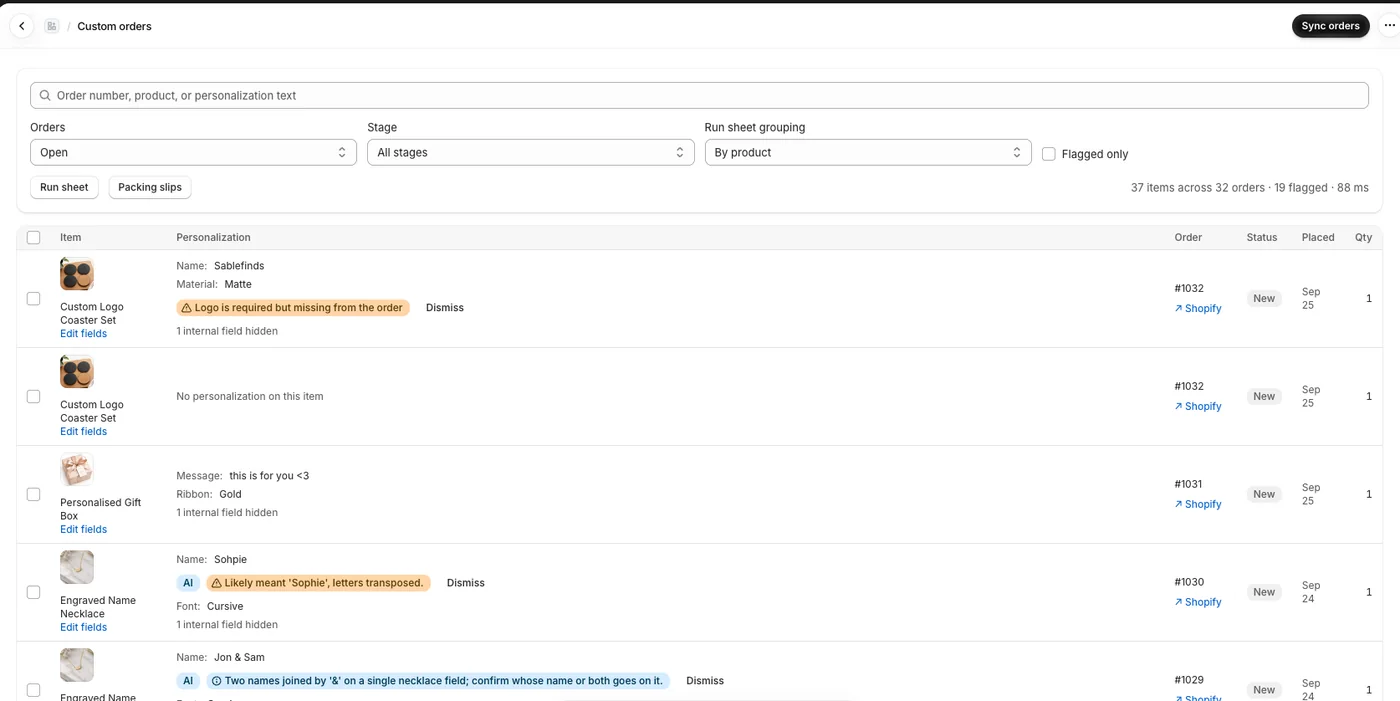
- Look at your orders. Every line item shows every field the customer filled in, whichever product options app collected it. You never need to open an order to read it.
- Set up one product. The card at the top lists products that need field rules and suggests where to start. Open one: OrderSpec proposes rules from your past orders, such as a character limit or the fonts you offer. Check them and press Looks right, save.
- See your first flags. Back on Orders, anything that breaks a rule now carries a flag. Open orders are checked again the moment you save.
- Make with confidence. Fix or dismiss each flag, move items through your production stages, and print a run sheet for the bench.
Video tour
A three-minute tour: install, field rules, flags, customer confirmation, production stages, run sheets and plans. Captions are in English.
Field rules
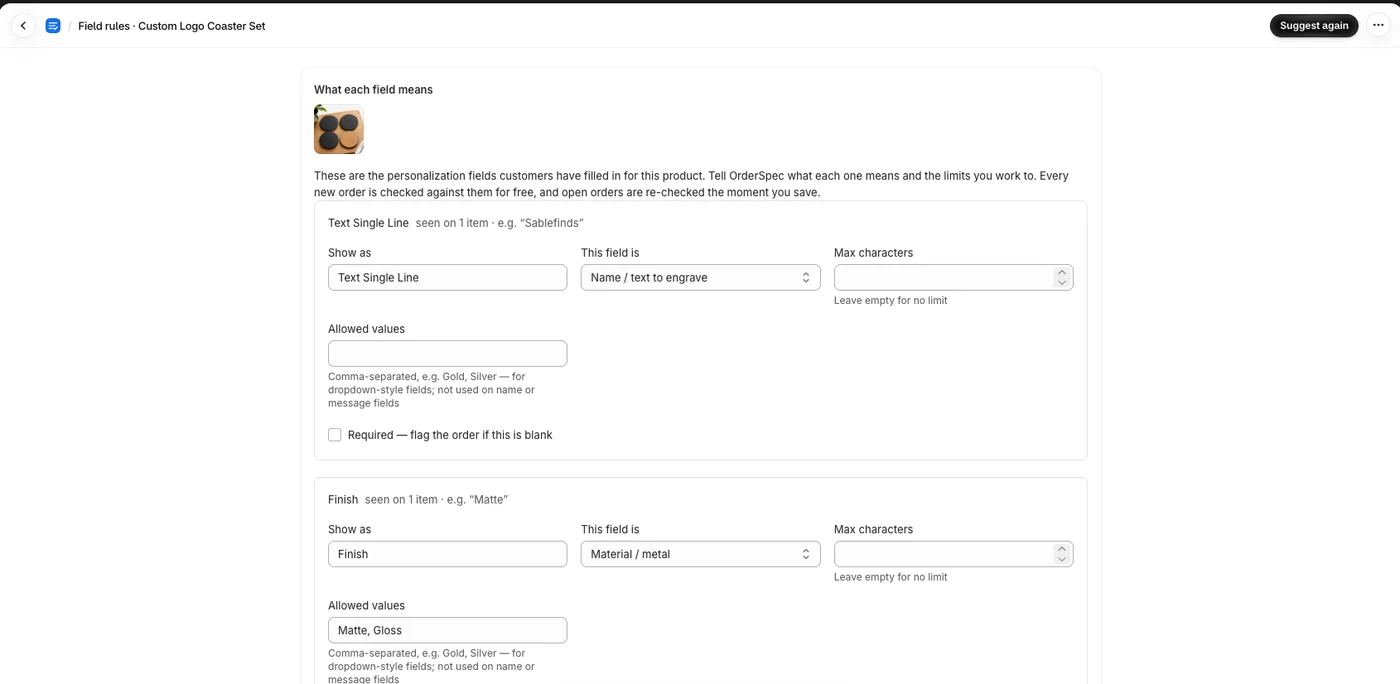
Field rules tell OrderSpec what each personalization field means and what you can actually make. OrderSpec proposes them from your past orders and shows each field as one line; press Looks right, save to approve, or Edit to change one. Fields that arrive under different names from different options apps are shown once and share one rule. You set them once per product; the options app's own field names are never assumed.
| Setting | What it does |
|---|---|
| Show as | The name you see on orders and run sheets, for example "Name to engrave" instead of text-box-1. |
| This field is | What the field means: a name, a message, a date, a font, a colour, a material, a size, a file, something else, or not customer input at all (hidden). |
| Max characters | The longest text that fits. Leave it empty for no limit. |
| Choices you offer | For menu-style fields: the only values you accept, separated by commas, such as Gold, Silver. |
| Required | Flag the order if this field is blank or missing. |
| Must match (under More options) | For a "type it twice" field: flag the order when it differs from the field it should repeat, such as Confirm name and Name. |
What each flag means
Flags are advice, never decisions. OrderSpec never changes, holds or cancels an order. Press Dismiss on any flag you are happy with; it is recorded in History and you can restore it.
| Flag | Why it appears | What to do |
|---|---|---|
| Too long | The text has more characters than the limit you set for that field. | Ask the customer for a shorter version, or check whether a smaller font fits. |
| Required but blank or missing | A field you marked Required is empty, or the order has no such field at all (for example no logo file on a logo product). | Contact the customer before making anything. |
| Not one of the allowed values | The value is not in the list you set, such as a font or colour you do not offer. | Check whether the list is out of date, then add the value in Field rules or ask the customer. |
| Contains an emoji | Most fonts, engravers and embroidery machines cannot produce emoji. | Ask the customer what to use instead, such as a heart shape or nothing. |
| Invisible or control characters | The text contains characters you cannot see, usually from copying and pasting. | Retype the text by hand when you make the item. |
| Mentions one option but another was chosen | Free text names an option that contradicts a menu choice, for example the note says gold but Metal says Silver. | Ask the customer which one they want. |
| Entries don't match | A field you marked Must match (for example Confirm name) differs from the field it should repeat. | Ask the customer which spelling is right. Capital letters count, extra spaces do not. |
| Extra spaces | Spaces at the start or end, or doubled spaces inside. | Usually harmless. Remove them when you make the item. |
| ALL CAPS | A name field is written entirely in capitals. | Check whether the customer wants capitals on the item or just typed that way. |
| Field has no label | The options app sent a field with a machine name such as dropdown-1, so OrderSpec does not know what it means. | Open Field rules for that product and give the field a name and meaning. |
| AI: likely typo | The AI thinks the text is probably misspelt, for example Sohpie instead of Sophie. | Confirm the spelling with the customer, or dismiss if it is intended. |
| AI: unclear | The AI thinks the text could be read more than one way, for example two names in one field or an instruction mixed in with the name. | Read the reason shown on the flag and ask the customer if you are unsure. |
AI checks
Rules catch what can be measured. The AI catches what a person would notice: a likely typo, two names in one field, an instruction hidden in a name. It only looks at free-text fields that passed your rules, once per order when the order arrives, and the result is stored, so opening the page never uses a check.
- What counts as one check: one order that had free text the rules could not judge. Orders with only menu choices, or where the rules already flagged the text, do not use a check.
- Monthly allowance: 30 checks on Free, 500 on Pro. When the allowance is used up, rule checks keep running on every order; only the AI pauses until the next month.
- "AI check unavailable" means the AI service could not be reached. Your rule flags still apply, and the check is retried automatically.
- No customer name, email or address is ever sent to the AI. See the privacy policy.
Production stages
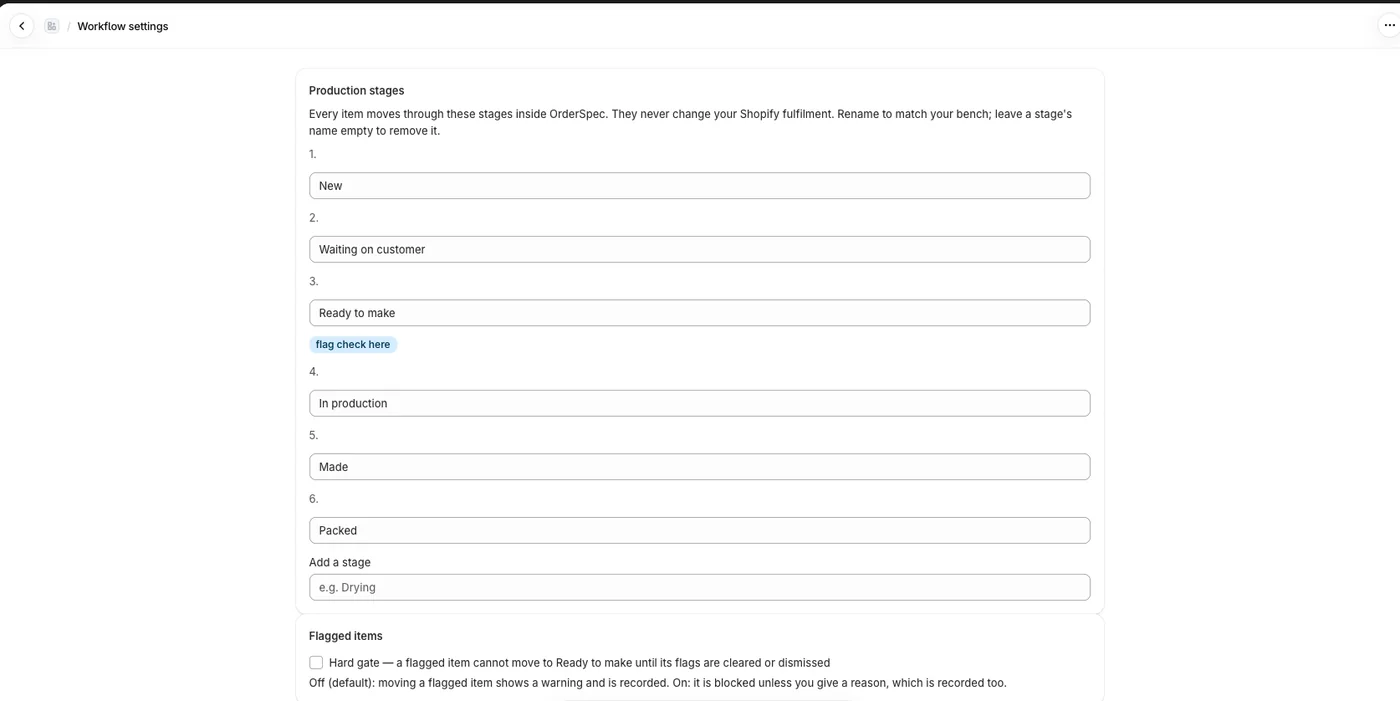
Every item moves through your own stages: New, Waiting on customer, Ready to make, In production, Made and Packed. Rename, remove or add stages in Settings. Stages live only in OrderSpec and never change your Shopify fulfilment; fulfil as usual with the Shopify link on each order.
- Select items with the tick boxes and use Move to to change many at once.
- Moving a flagged item to Ready to make shows a warning and is recorded. Turn on Hard gate in Settings to block the move until the flags are cleared, unless you give a reason.
- Ship-by dates: add a tag such as
ship-by-2026-10-15to an order in Shopify and OrderSpec shows how urgent it is (Pro).
Run sheets and packing slips
- Run sheet: what to make, with every field written out, grouped by product, order or stage, or on Pro by any menu field such as font or colour. Choose the grouping in Run sheet grouping above the table.
- Packing slips: one per order, to check each parcel against what the customer asked for.
- Download CSV: the same orders as a spreadsheet for Excel or Google Sheets, one row per item and one column per personalization field. Engraving and embroidery software that imports names from a spreadsheet can use it directly.
- Select items first to print only those; with nothing selected, everything in the current view is printed.
- PDFs are made in your browser. Accents, Chinese, Japanese and Korean text print correctly; emoji print as a placeholder, which is also why they are flagged.
Customer confirmation (Pro)
When you are not sure what the customer meant, ask them before you make anything.
- On the order, press Ask customer to confirm. The button is dark on orders with open flags.
- Edit the message if you like, then Copy message and send it the way you usually reach the customer: a reply to their Shopify order email, Etsy chat or WhatsApp. OrderSpec never needs their email address.
- The customer opens a private page on your own store address showing the order number, products and personalization, and presses Looks right, confirm or types a correction.
- The order shows Confirmed by customer or Customer asked for a change; a correction appears next to the fields and prints on the run sheet. Press Mark ready to dismiss the flags and move the items to Ready to make. Nothing moves until you press it.
Telegram alerts (Pro)
- In Settings, press Connect Telegram, then Open Telegram and tap Start.
- Tap Start in Telegram. The bot replies that the chat is connected; back in OrderSpec press Done, check connection.
You get a message when a new order arrives with open flags, and when a customer answers a confirmation, for example "Order #1042 needs a look: 2 flags (too long, likely typo)" with a link to the order. Messages never contain what the customer typed. To alert a team, add the bot to a Telegram group. Send /stop in the chat, or press Disconnect in Settings, to stop.
Analytics (Pro)
Analytics in the app menu shows, for this month, the last 30 or the last 90 days: problems caught before production and the trend, orders checked, catches by rules and by AI, how often flags were dismissed, customer confirmations, AI checks used, and the products and fields that cause the most problems. Orders count in the period they were placed, so syncing old orders never changes this month. Every number is a count from your own orders; nothing is estimated.
History
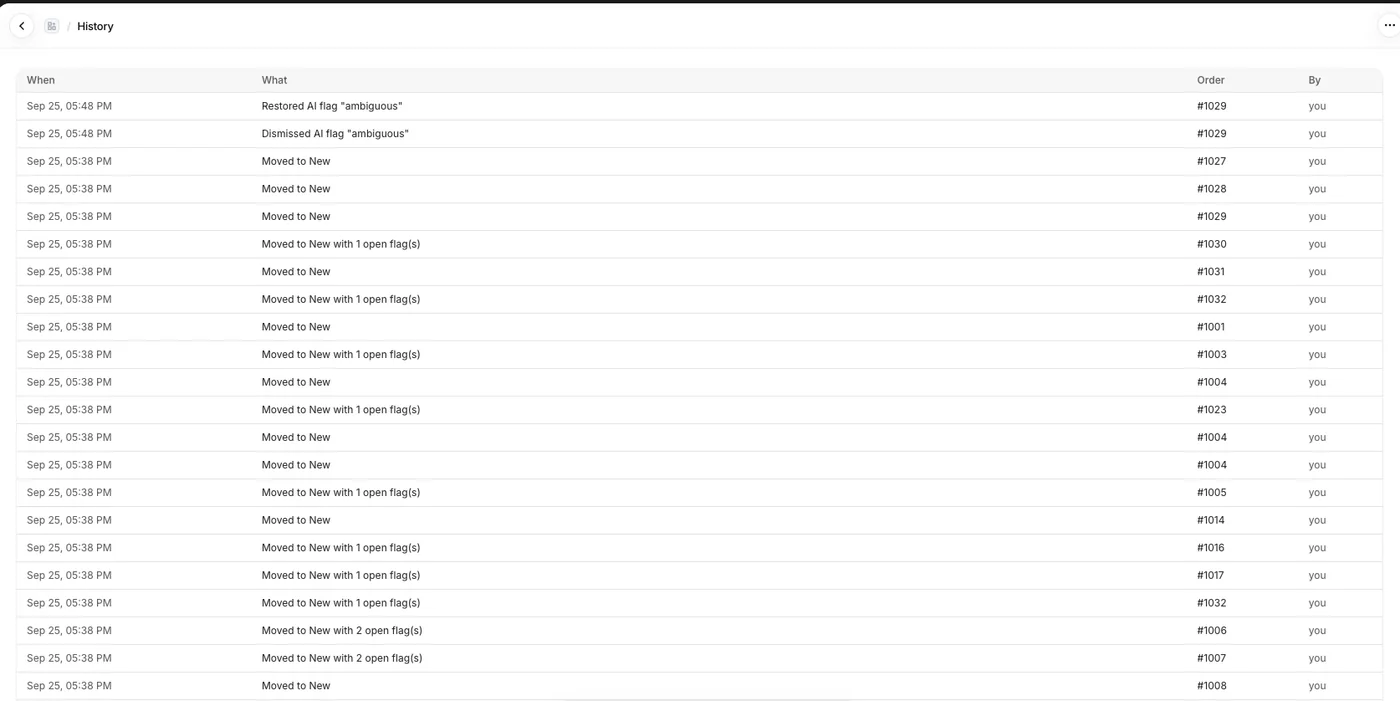
History records every action: status changes, dismissed and restored flags, saved rules, settings changes, order syncs, and privacy requests forwarded by Shopify. Click an order number to jump to it.
Troubleshooting
My orders are not showing
OrderSpec shows orders from the last 60 days. New orders appear within seconds. If some are missing, press Sync orders at the top of the Orders page, and check the Orders filter: Open hides fulfilled and cancelled orders.
An order says "No personalization on this item"
The customer did not fill in any field for that item, or the item is an add-on your options app created (some apps add a separate line for the personalization fee). Nothing is wrong.
A field is called dropdown-1, text-box-1 or similar
Some options apps do not send your labels. Open Field rules for the product and give the field a name and meaning; every order then shows your name.
"1 internal field hidden": where did it go?
Options apps store their own data, such as preview images and internal IDs, next to the customer's fields. OrderSpec hides it so you only see what the customer typed.
A product has no flags even though an order looks wrong
Most checks need field rules. Open the product's Field rules, set the limit or allowed values, and save; open orders are re-checked straight away.
A flag is wrong
Press Dismiss. If the same wrong flag keeps coming back, adjust the product's Field rules, for example add the missing allowed value. If an AI flag is clearly wrong, tell us the order number so we can improve it.
The PDF does not download
Allow pop-ups and downloads for Shopify in your browser, then try again. The first PDF can take a few seconds while fonts load.
Search does not find an order
Search looks at order numbers, product names and everything the customer typed, within the orders currently loaded. Check the Orders and Stage filters, and untick Flagged only.
FAQ
Which personalization apps work?
Infinite Options, Globo Product Options, Bold, Zakeke, Easify, Product Personalizer and plain theme forms. OrderSpec reads every field the customer filled in, whichever app collected it, so an app we have not tested usually works too. If yours does not, tell us and we will add it.
Will it change my orders?
No. OrderSpec can only read orders and products. It never edits, cancels, holds or fulfils an order, and its production stages do not change your Shopify fulfilment.
What data do you access?
Only the order details: the product, the personalization the customer typed and the order number. Never customer names, emails or addresses. Fulfilled orders are deleted after 90 days and everything is deleted when you uninstall. Details are in the privacy policy.
Is there a free plan?
Yes. Free includes every order on one screen, unlimited rule checks, production stages, run sheets and packing slips, and 30 AI checks a month. Pro adds 500 AI checks a month, customer confirmation links, Telegram alerts, analytics, run sheets grouped by any field and ship-by urgency, with a 14-day free trial.
How many staff can use it?
Anyone with access to the app in your Shopify admin, on every plan.
What happens when I uninstall?
Everything OrderSpec stored for your shop is deleted at once. Your field rules stay on your Shopify store, so they are ready if you reinstall.
Contact support
Still stuck? Email tmanon007@gmail.com. We aim to reply within one working day. To get an answer in one go, include:
- your store address (yourstore.myshopify.com)
- the order number, if it is about an order, such as #1042
- what you expected and what you saw
- a screenshot, if you can
Please do not send your customers' names, emails or addresses; the order number is enough for us to help.